Automating Monthly Expense Report Processing
Objective
Automate the consolidation of monthly expense reports uploaded by multiple team members into a single Google Sheet, removing the manual effort from a recurring, error-prone data task. Each month, team members uploaded CSV files to a shared Drive folder; those files then needed to be parsed, standardised, and appended to a central sheet for processing and visualisation.
How it works
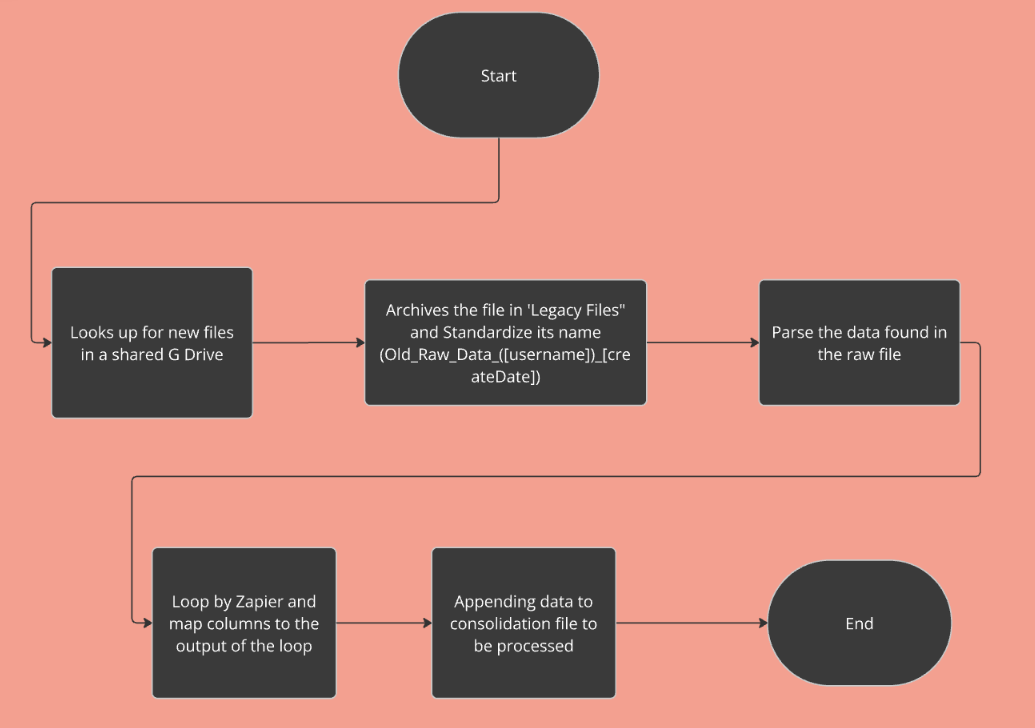
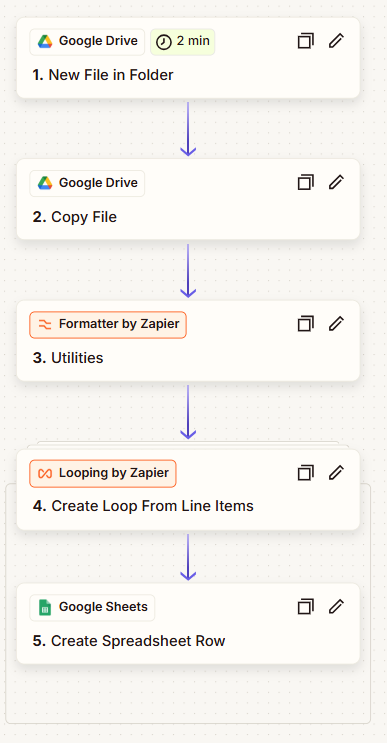
- Detection: Zapier monitors a shared Google Drive folder for new monthly CSV expense reports uploaded by any team member
- Archiving: Each new file is automatically moved to a Legacy Files folder with a standardised name: Old_Raw_Data_([Username])_[CreateDate], preserving the original for audit purposes
- Parsing: Zapier parses the raw CSV data from each file for structured processing
- Mapping: Loop by Zapier iterates through every row, mapping columns from the raw CSV format to the required output structure
- Consolidation: Processed data is appended to a target Google Sheet, where it is ready for subsequent analysis and visualisation
Key outcomes
- Monthly expense consolidation runs without manual effort, regardless of how many reports are uploaded
- Consistent file archiving and naming across all team members, replacing ad hoc file management
- Clean, processed data in a single sheet immediately ready for analysis
- Scalable: works the same whether one or ten reports are uploaded in a given month